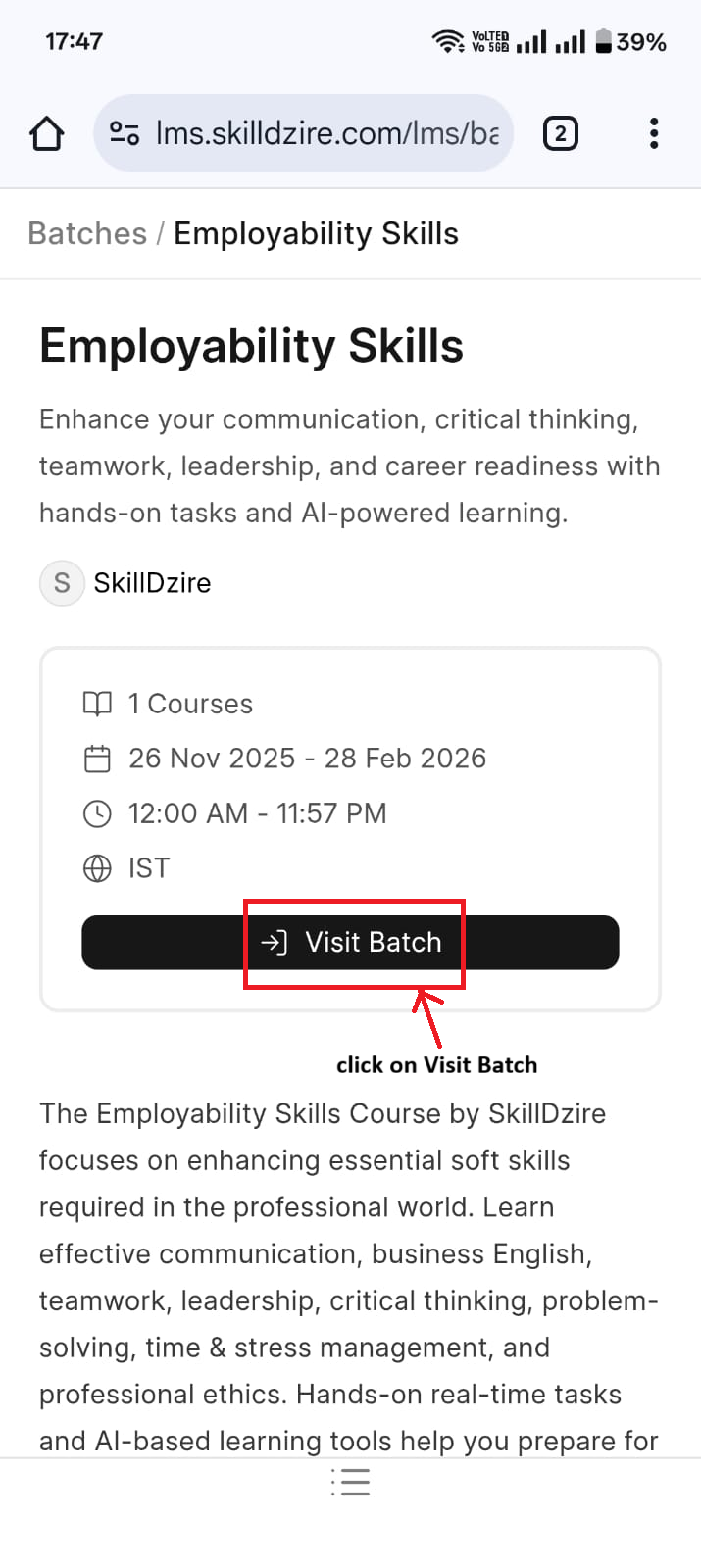
SkillDzire LMS Guidelines

Steps to login SkillDzire LMS

Login to LMS to access course

Login using Google with registered Email id. Check in Home to access Enrolled Batch.

Open LMS
โ”€โ”€ Desktop View Steps โ”€โ”€

Step 1: Go to LMS

Visit https://lms.skilldzire.com and log in.
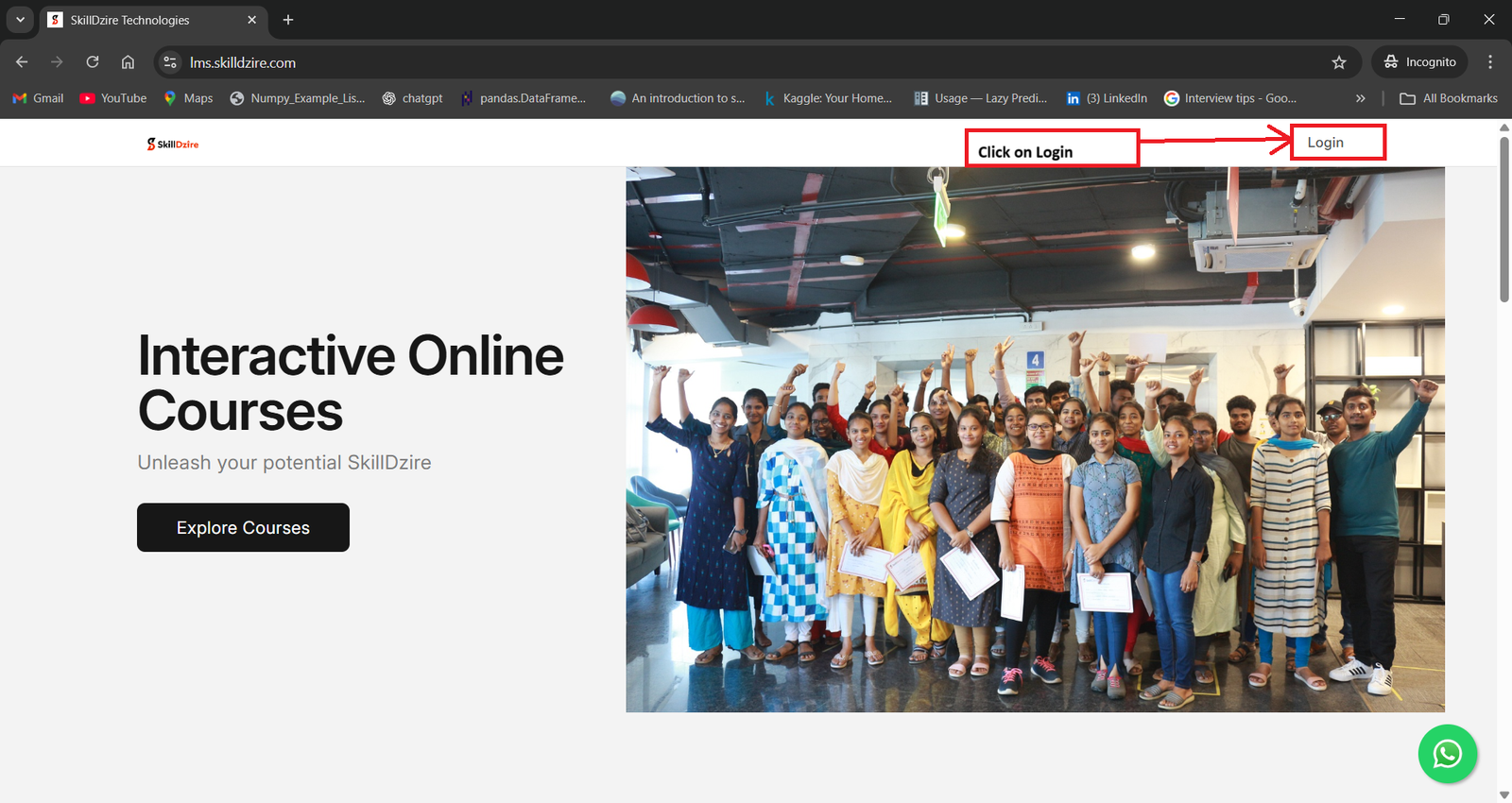
Desktop LMS Login

Step 2: Login with Google

Click on Login with Google.
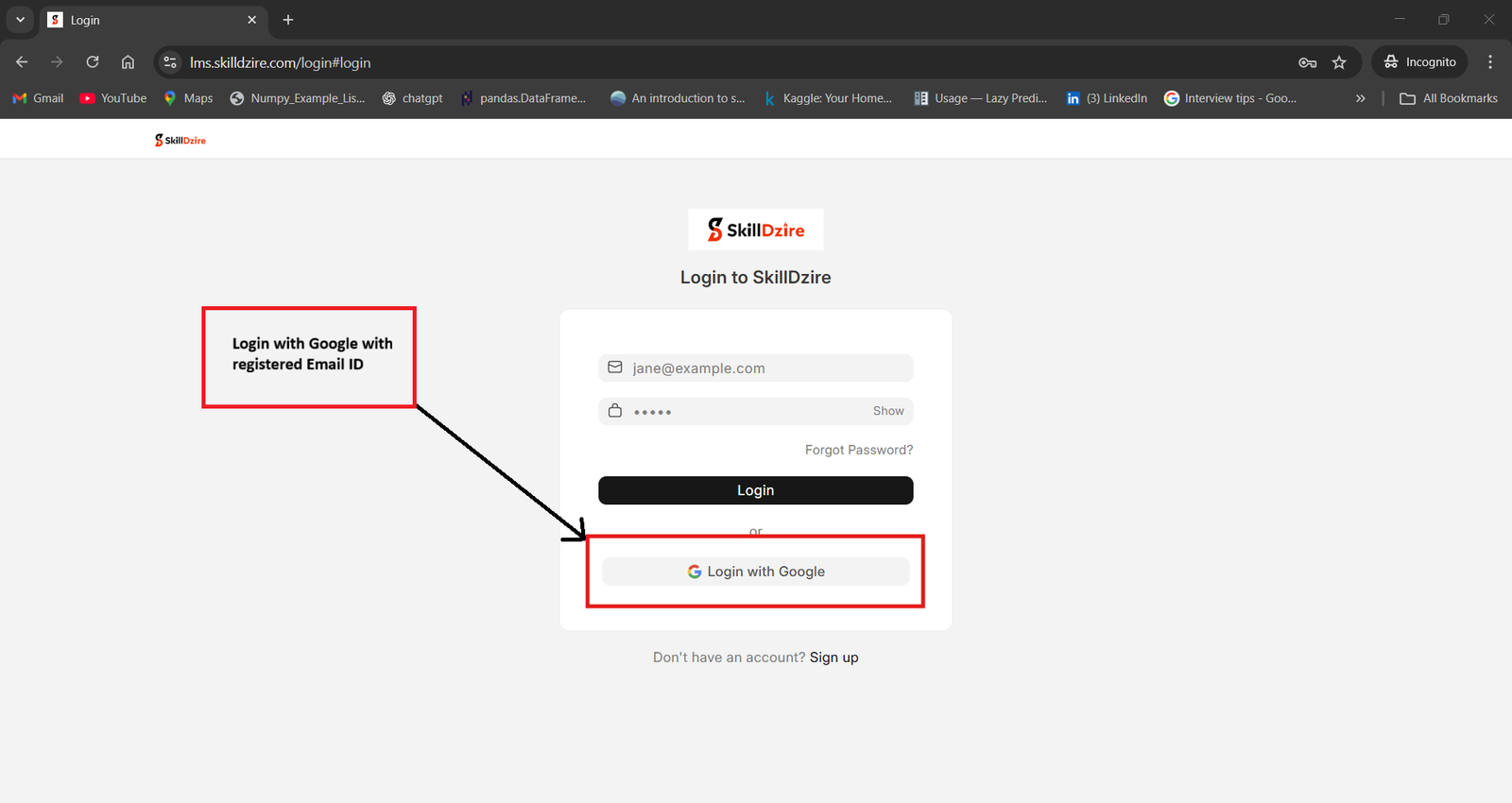
Desktop Login Google

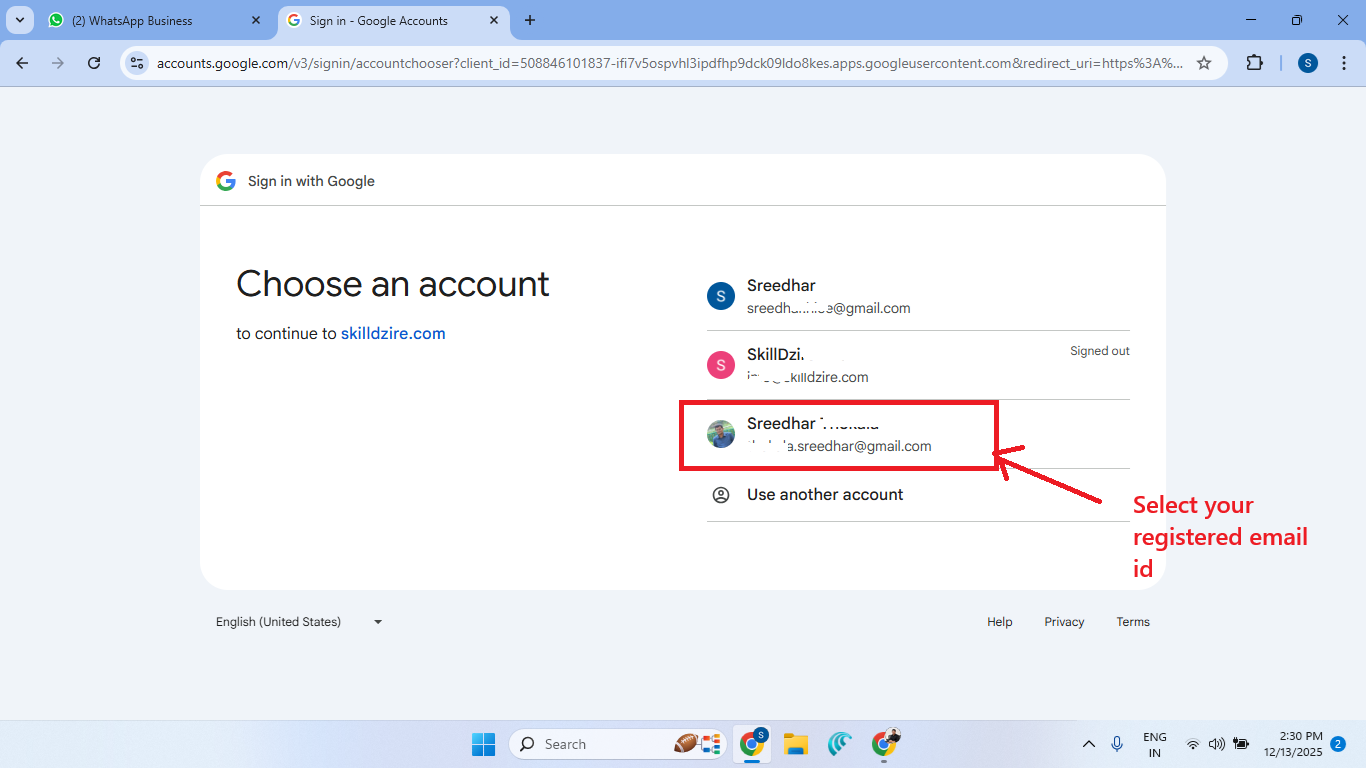
Select your registered email.

Select Registered Email

Click on the Profile button and select Learning.
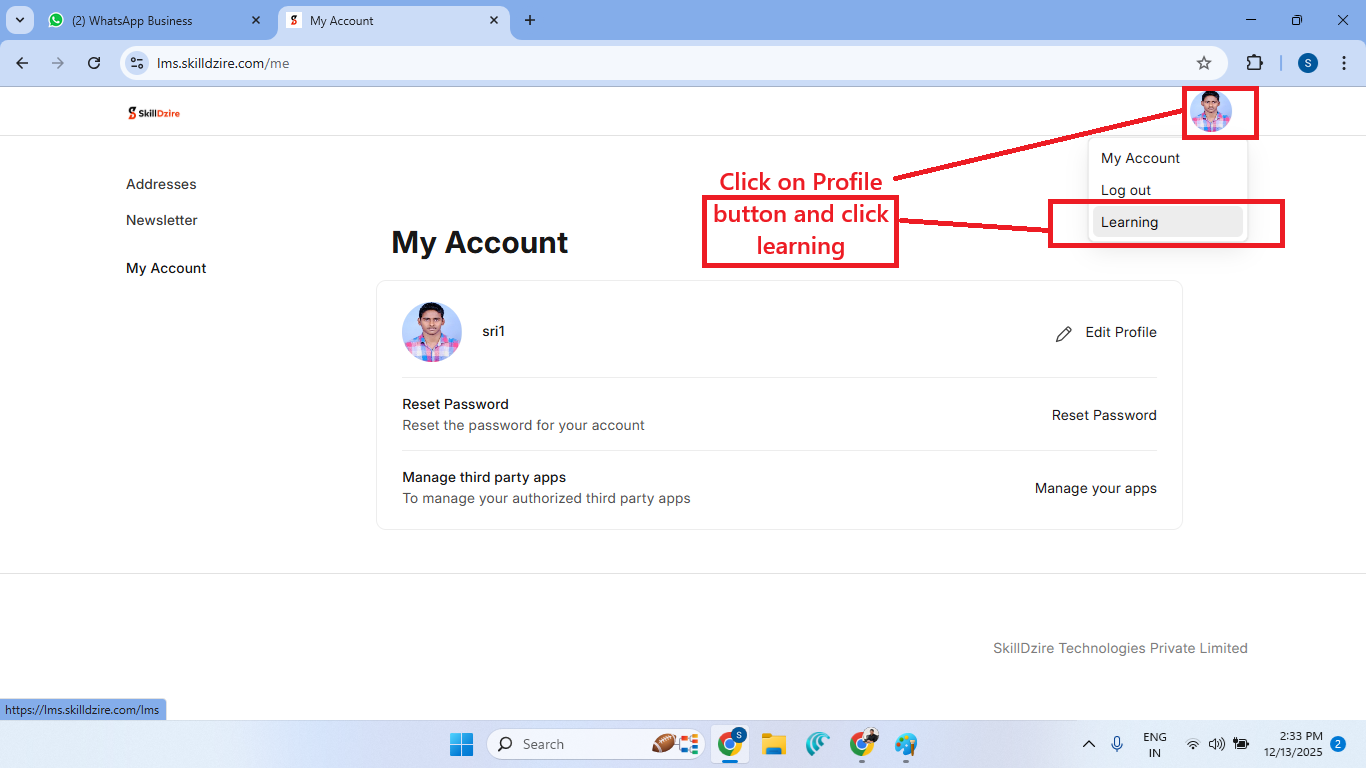
Select Learning from Profile

Step 3: Explore Courses

Click on Explore Courses.
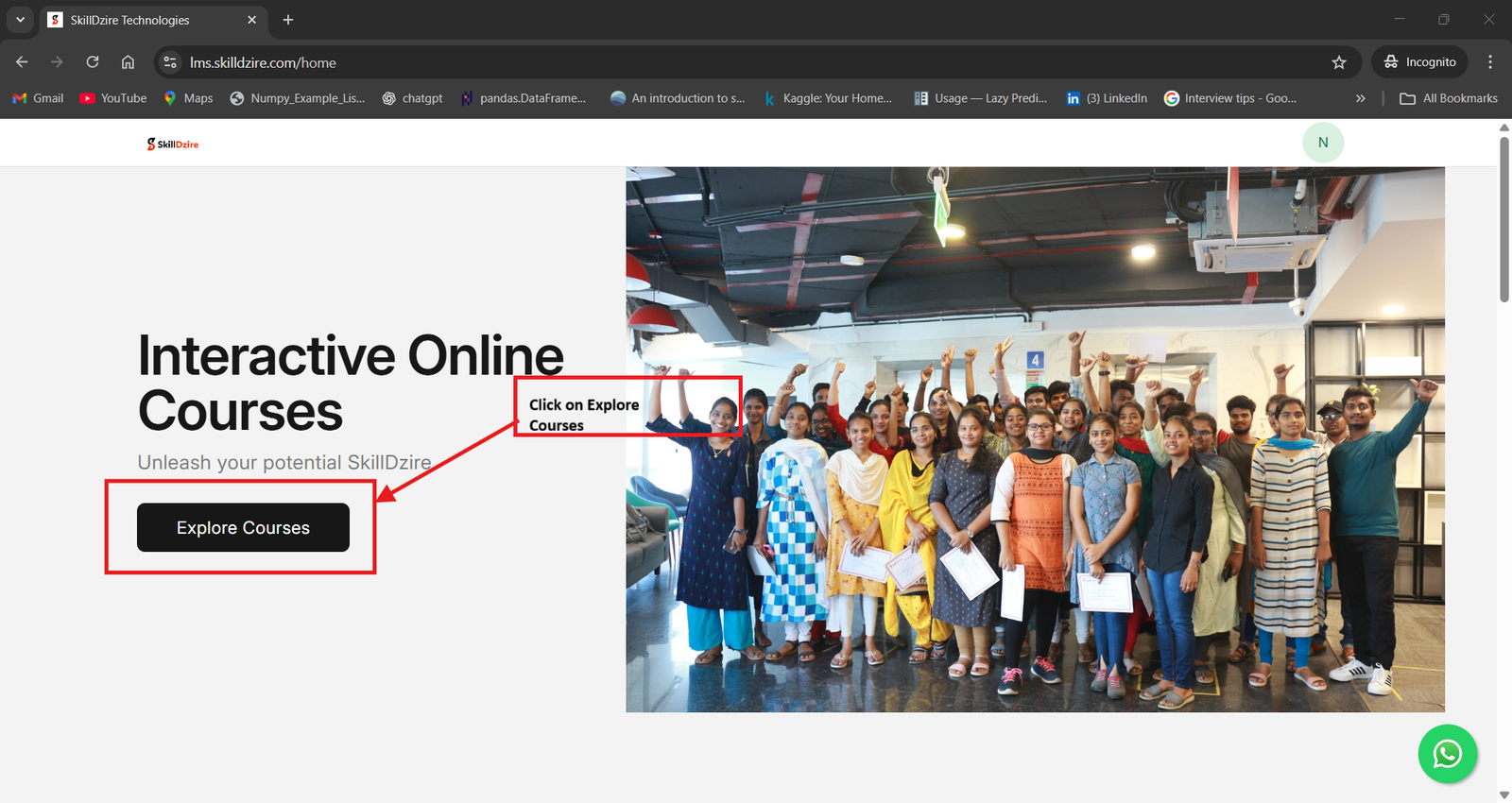
Desktop Explore Courses

Step 4: Home โ†’ Enrolled Batch

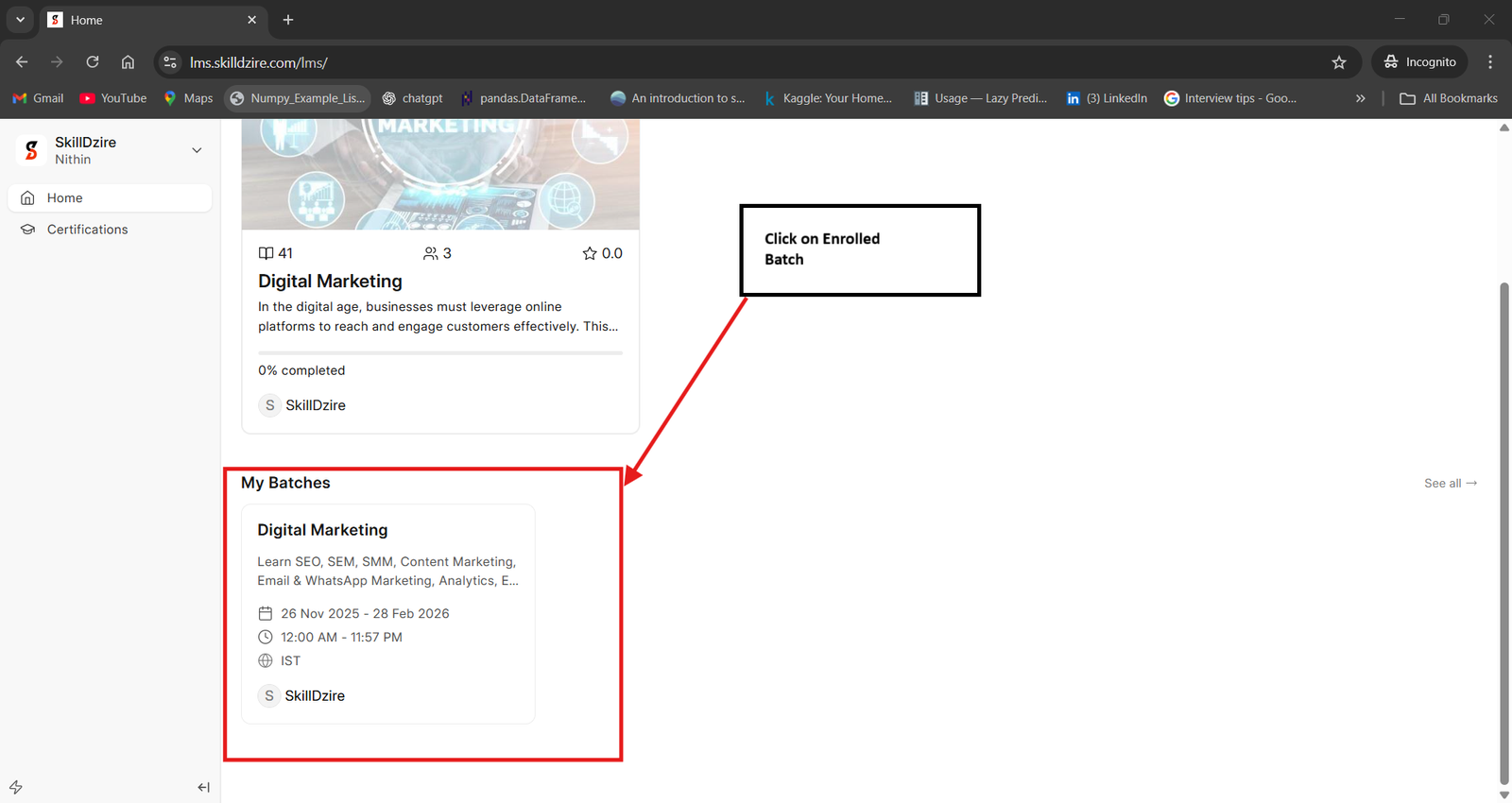
Click Home to check enrolled batch.
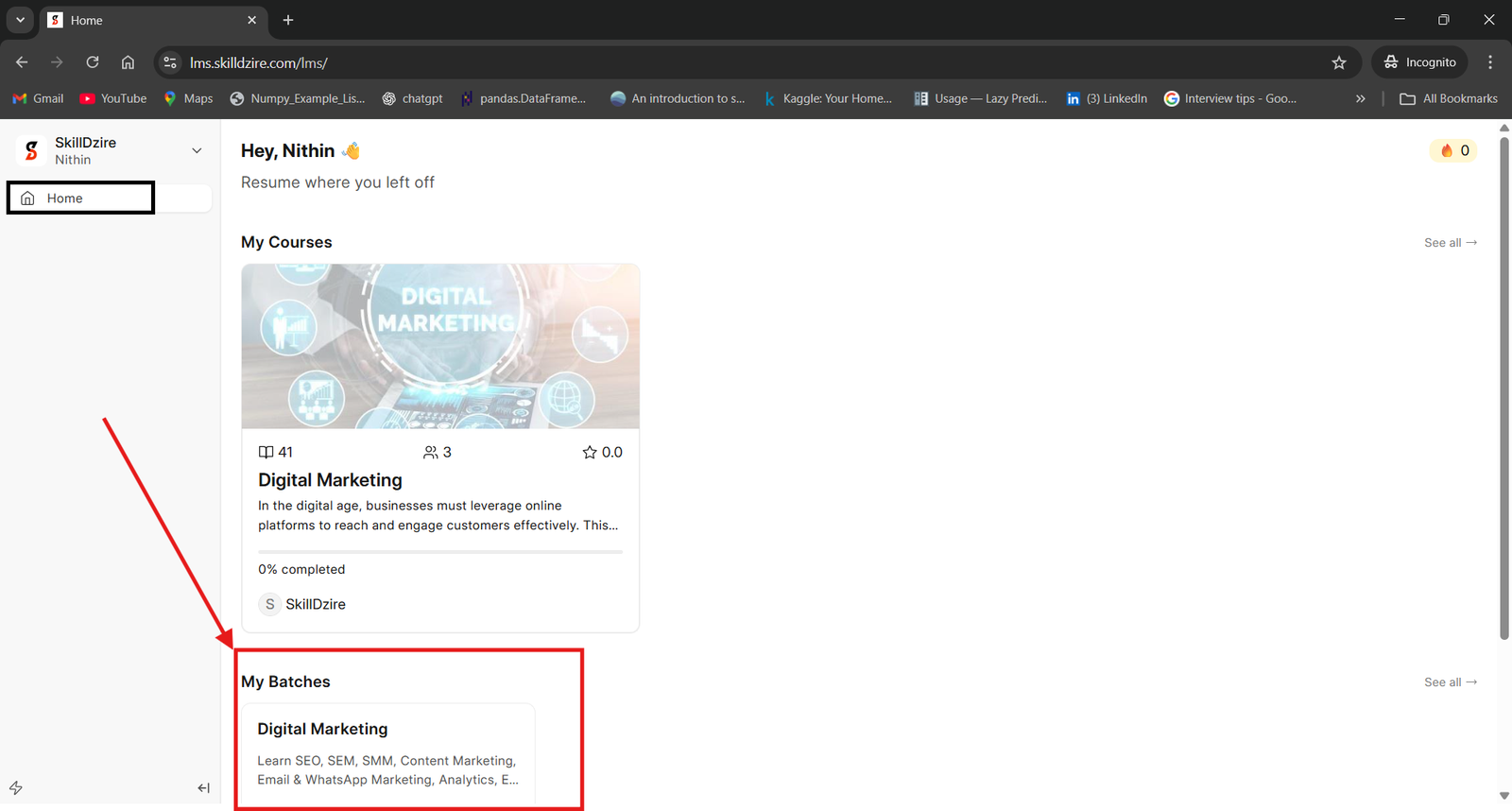
Desktop Home Desktop Batch

Step 5: Access Course Lessons

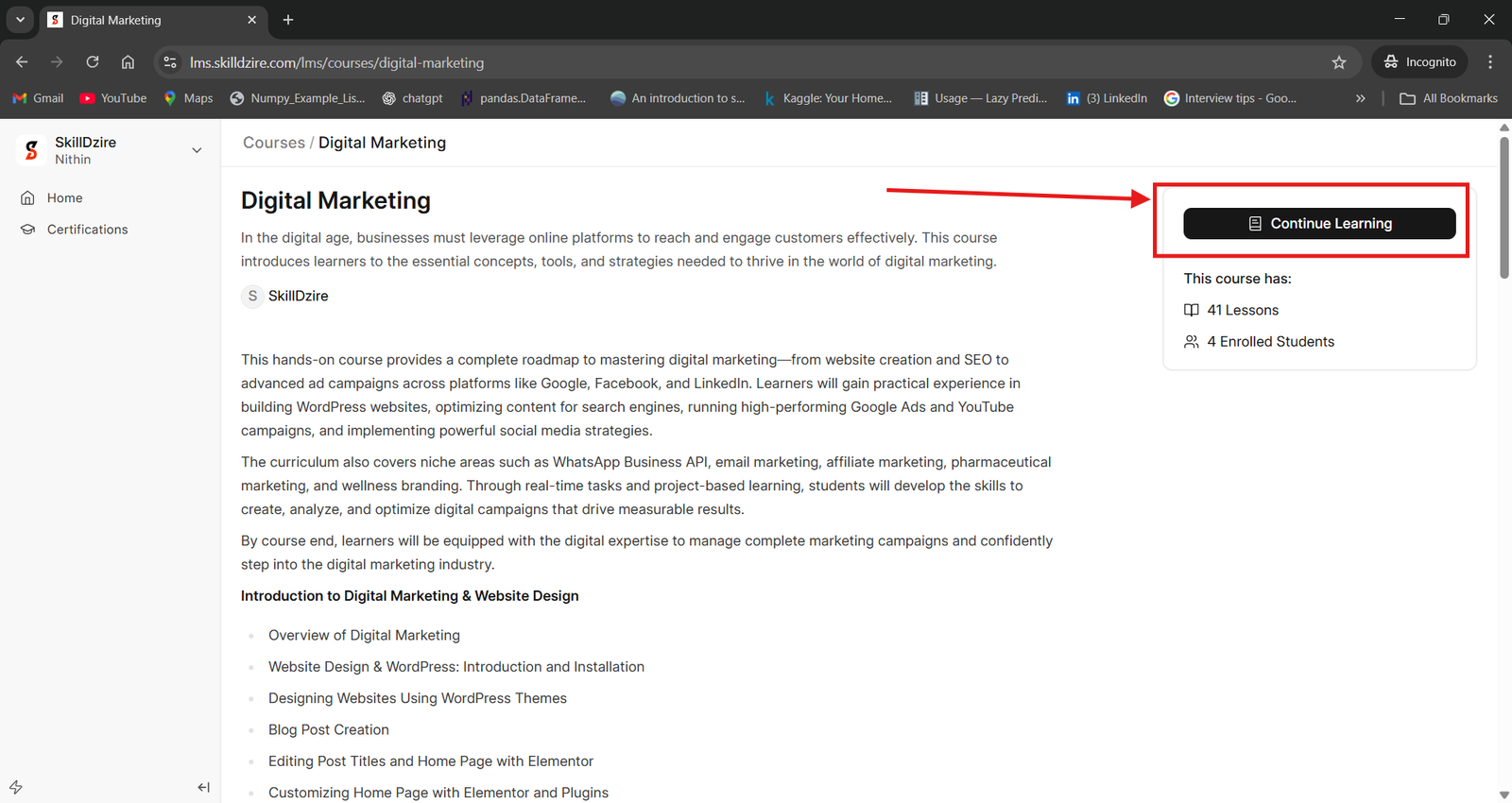
Learn Recording Course Lessons.
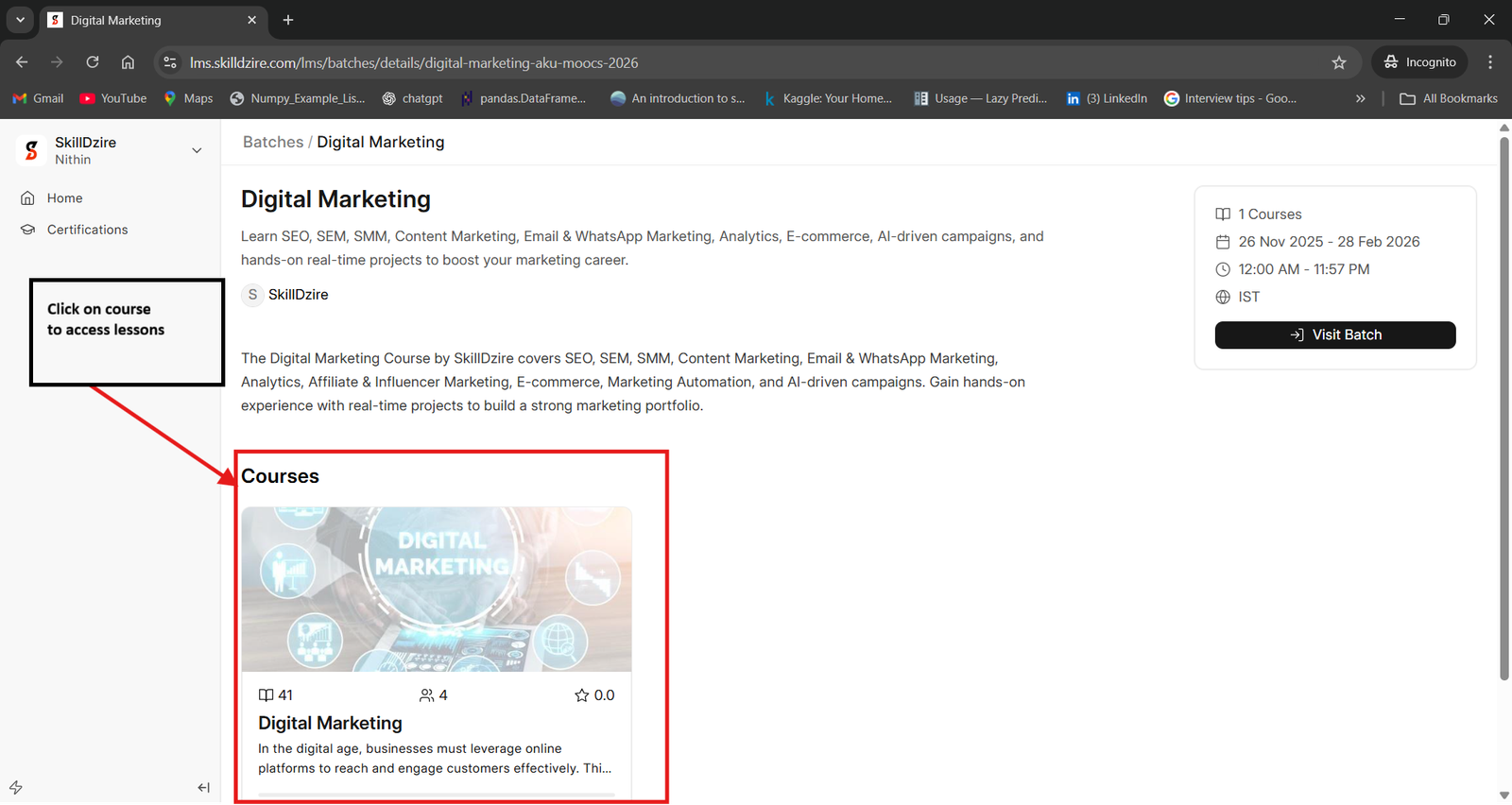
Desktop Course Lessons Desktop Continue Learning

Step 6: Visit Batch for Assessment

Visit Batch to attempt assessment.
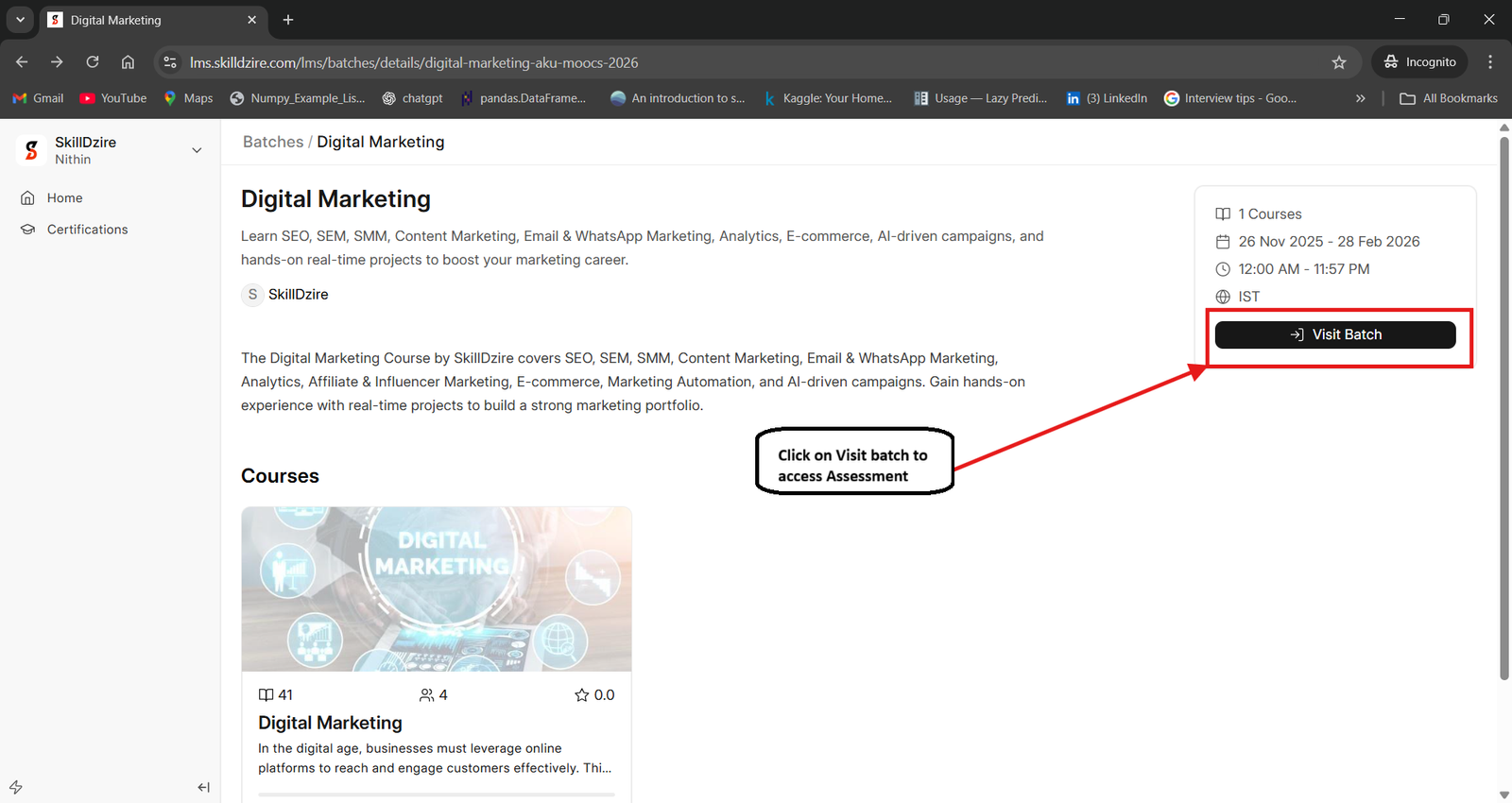
Desktop Visit Batch
โ”€โ”€ Mobile View Steps โ”€โ”€

Step 1: Go to LMS

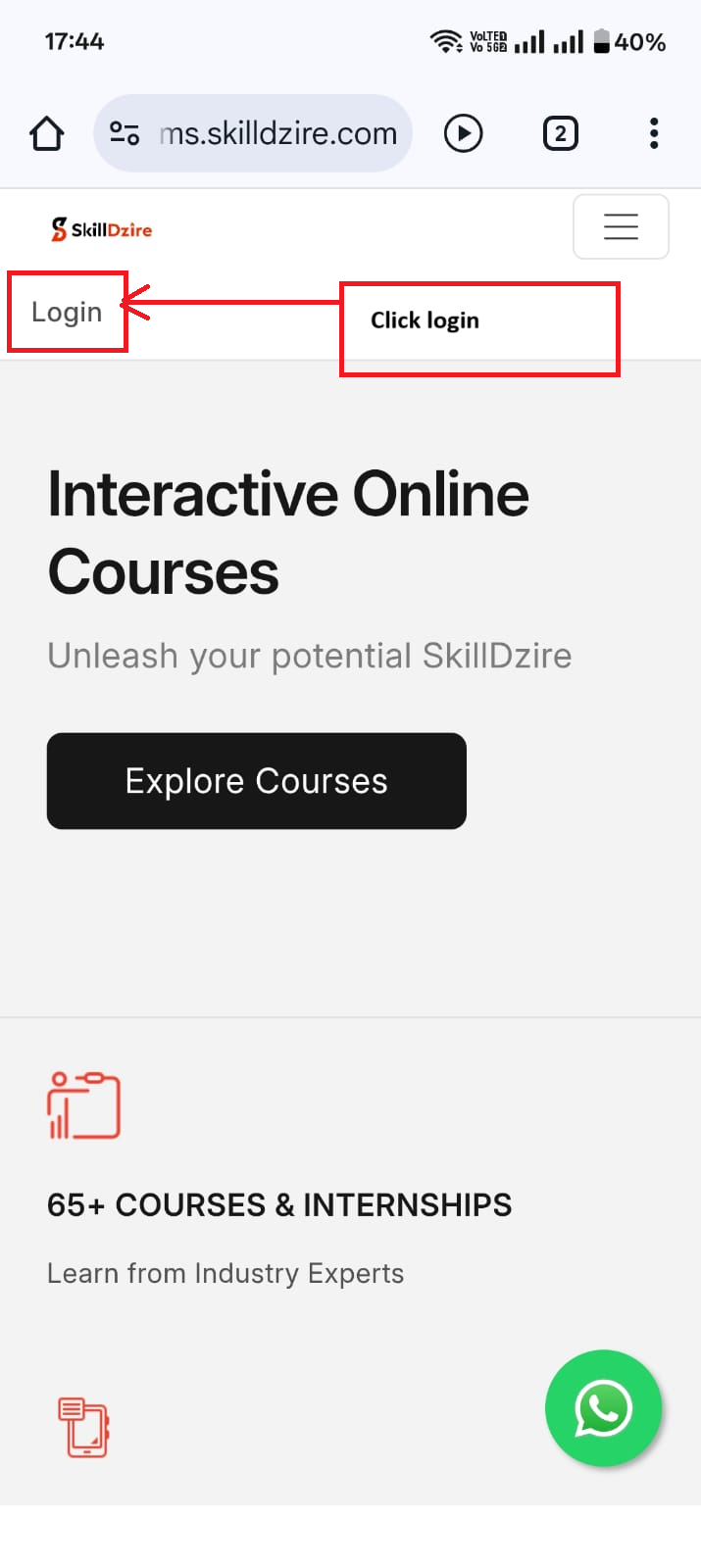
Open https://lms.skilldzire.com in mobile.

Mobile Step 1

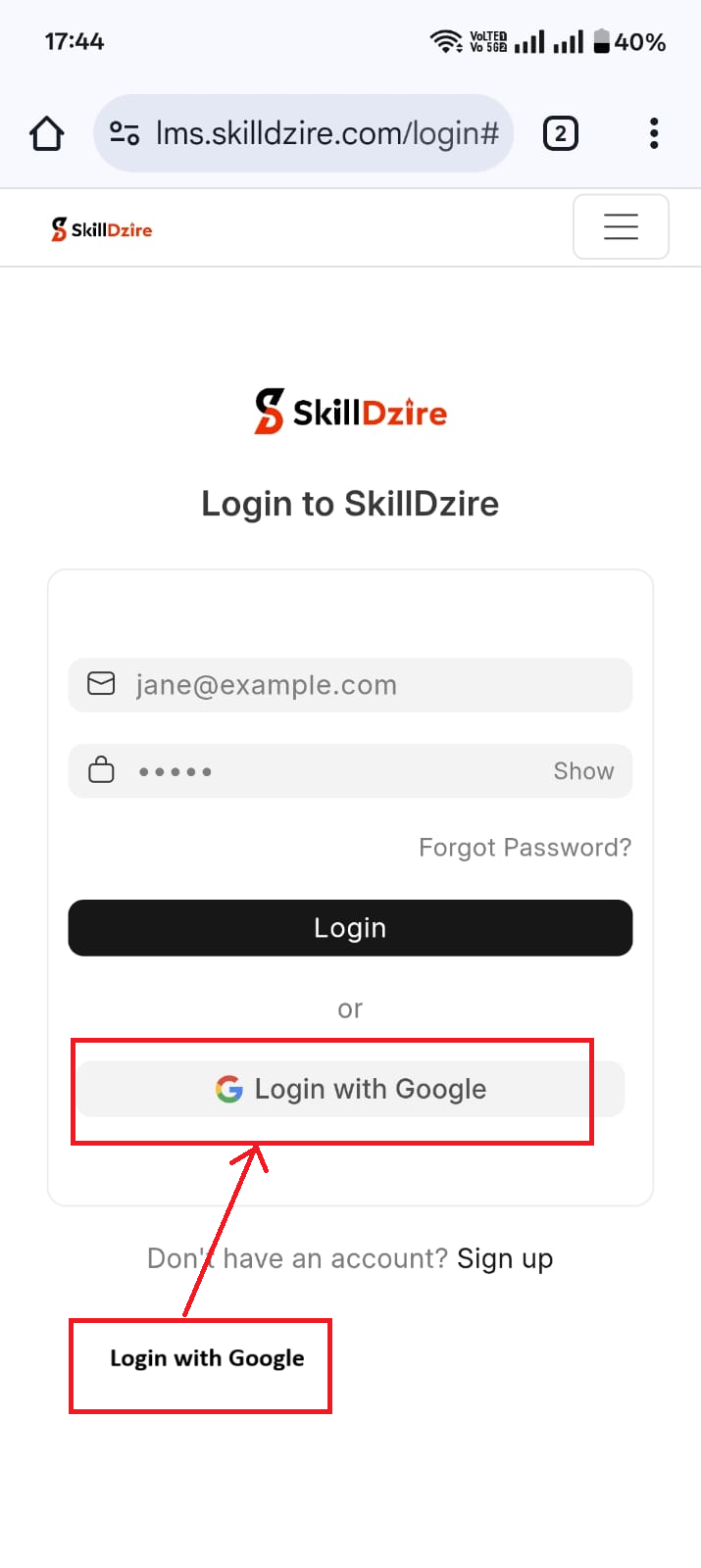
Step 2: Login with Google

Tap Login with Google.

Mobile Step 2

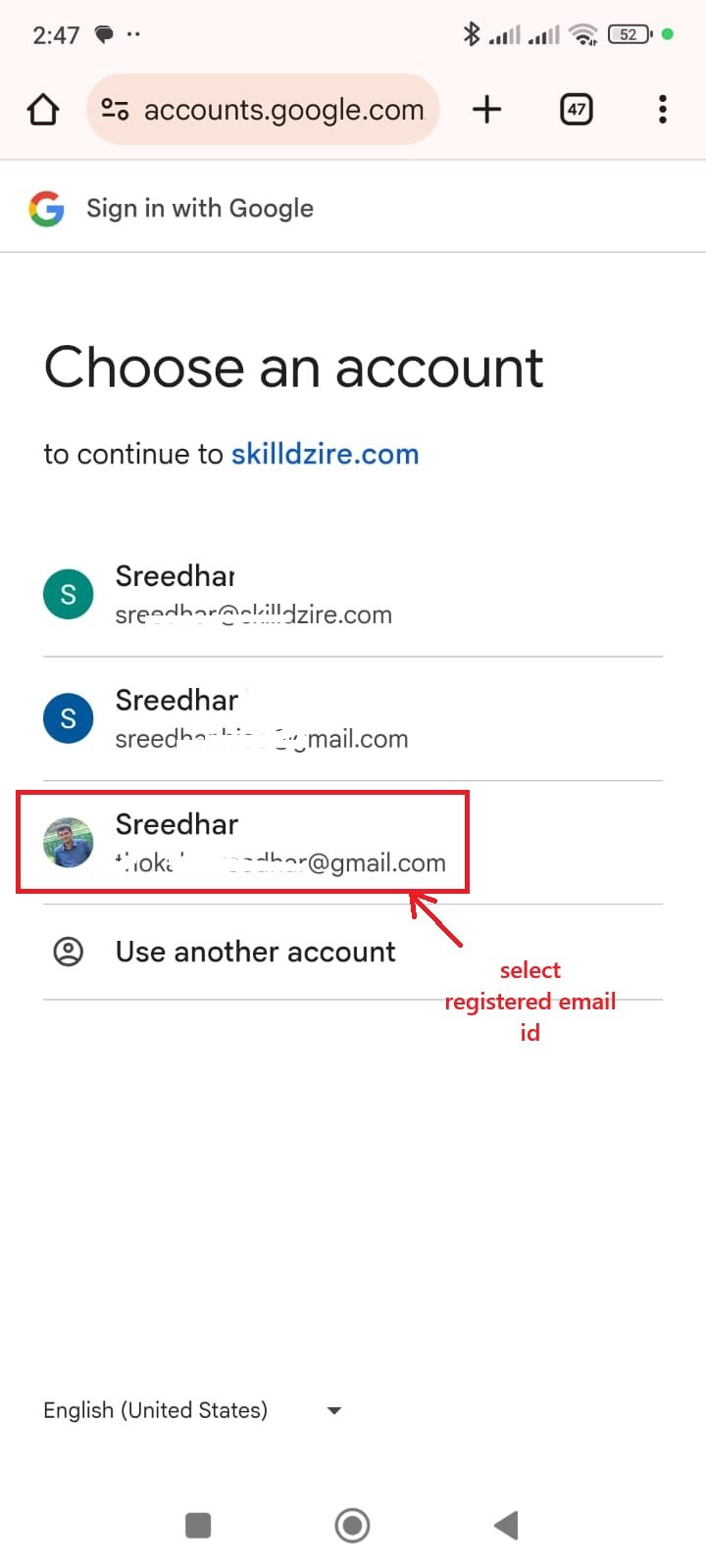
Select the appropriate registered email ID.

Select Registered Email on Mobile

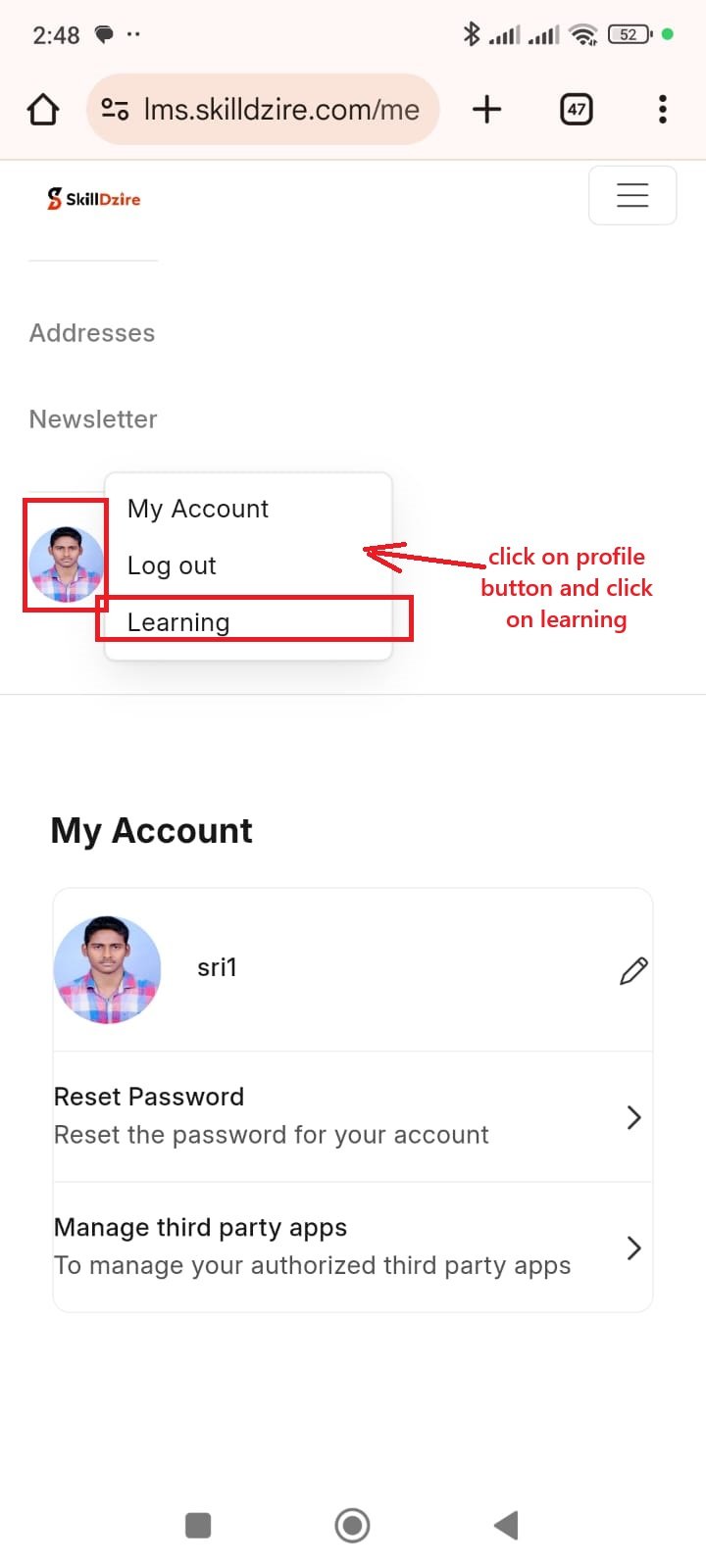
Tap on the Profile icon, then select Learning.

Select Learning from Profile on Mobile

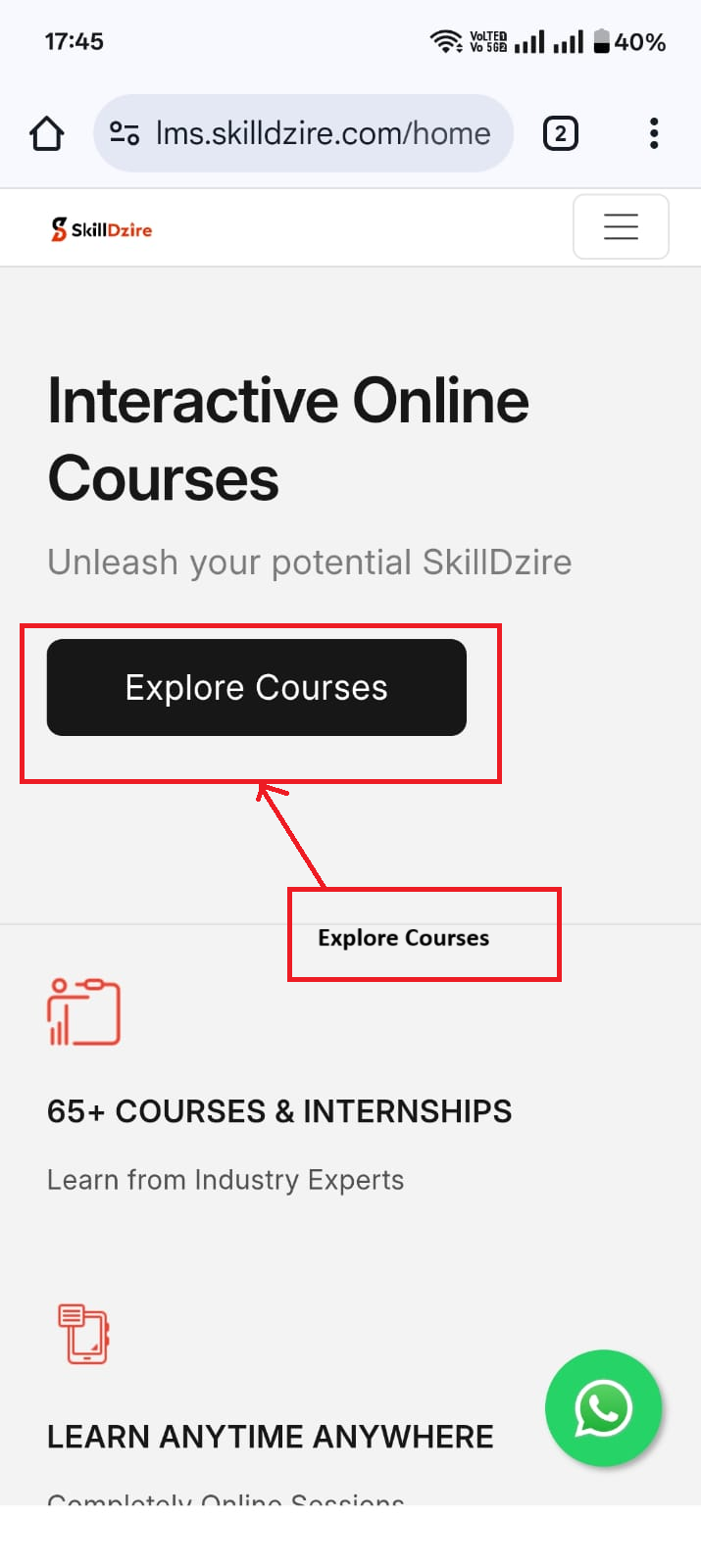
Step 3: Explore Courses

Tap Explore Courses.

Mobile Step 3

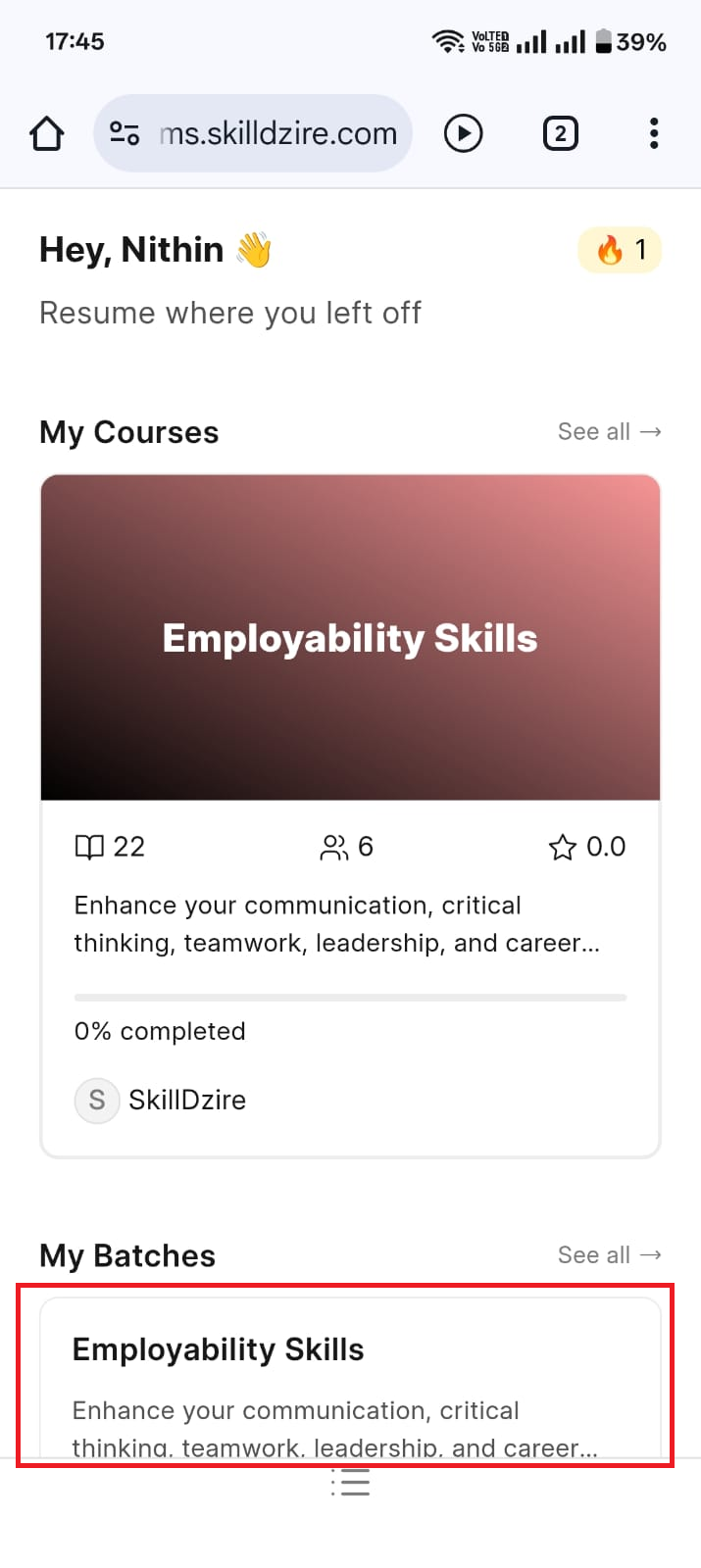
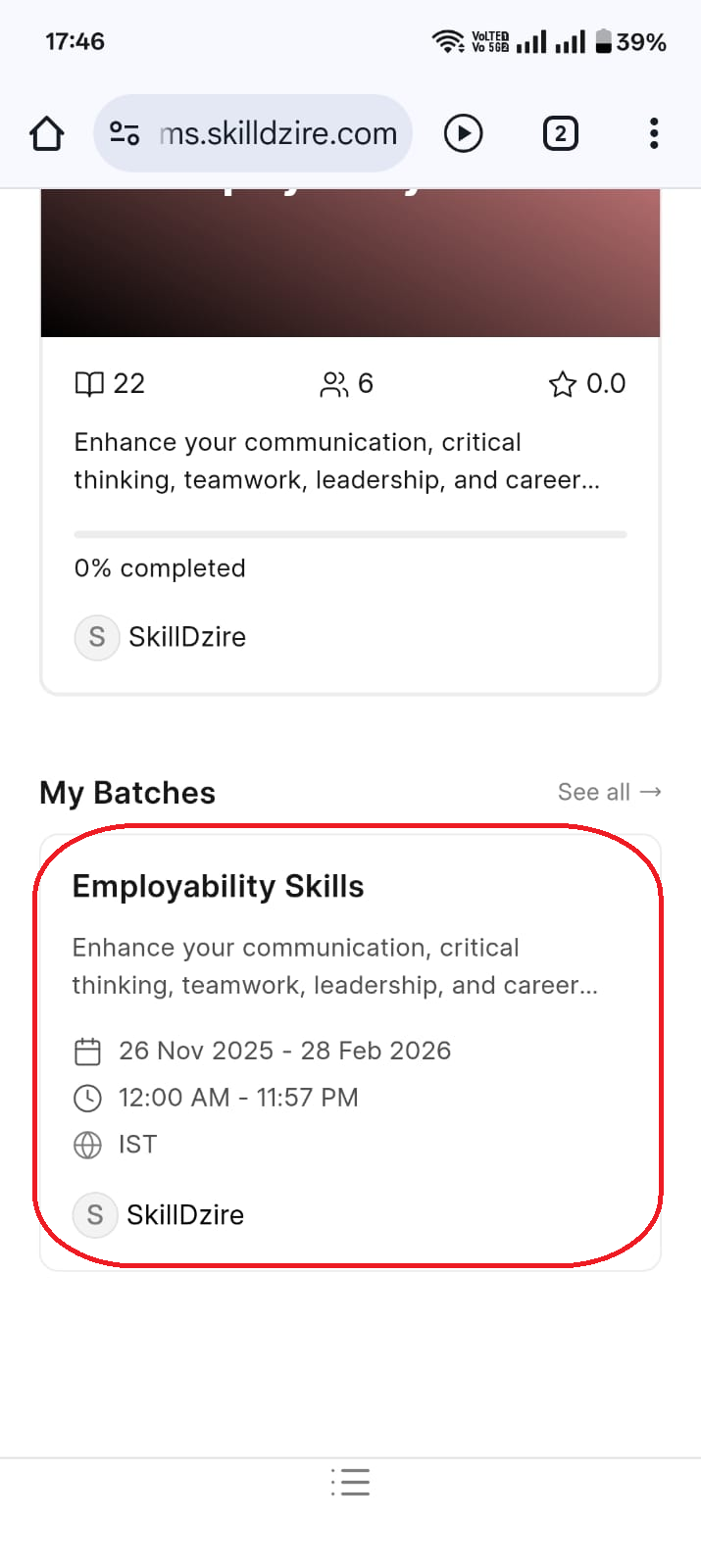
Step 4: Home โ†’ Enrolled Batch

Tap Home โ†’ Enrolled Batch.

Mobile Step 4a Mobile Step 4b

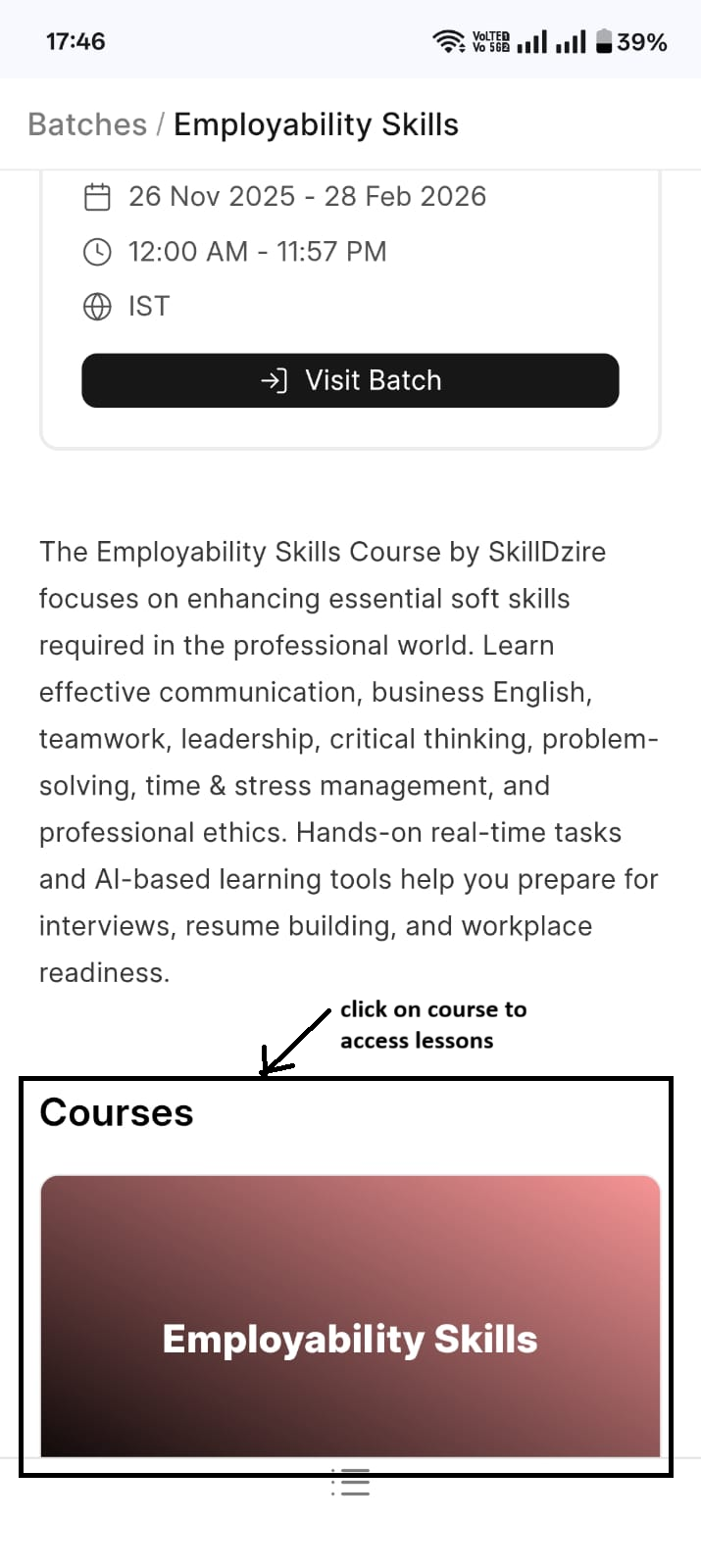
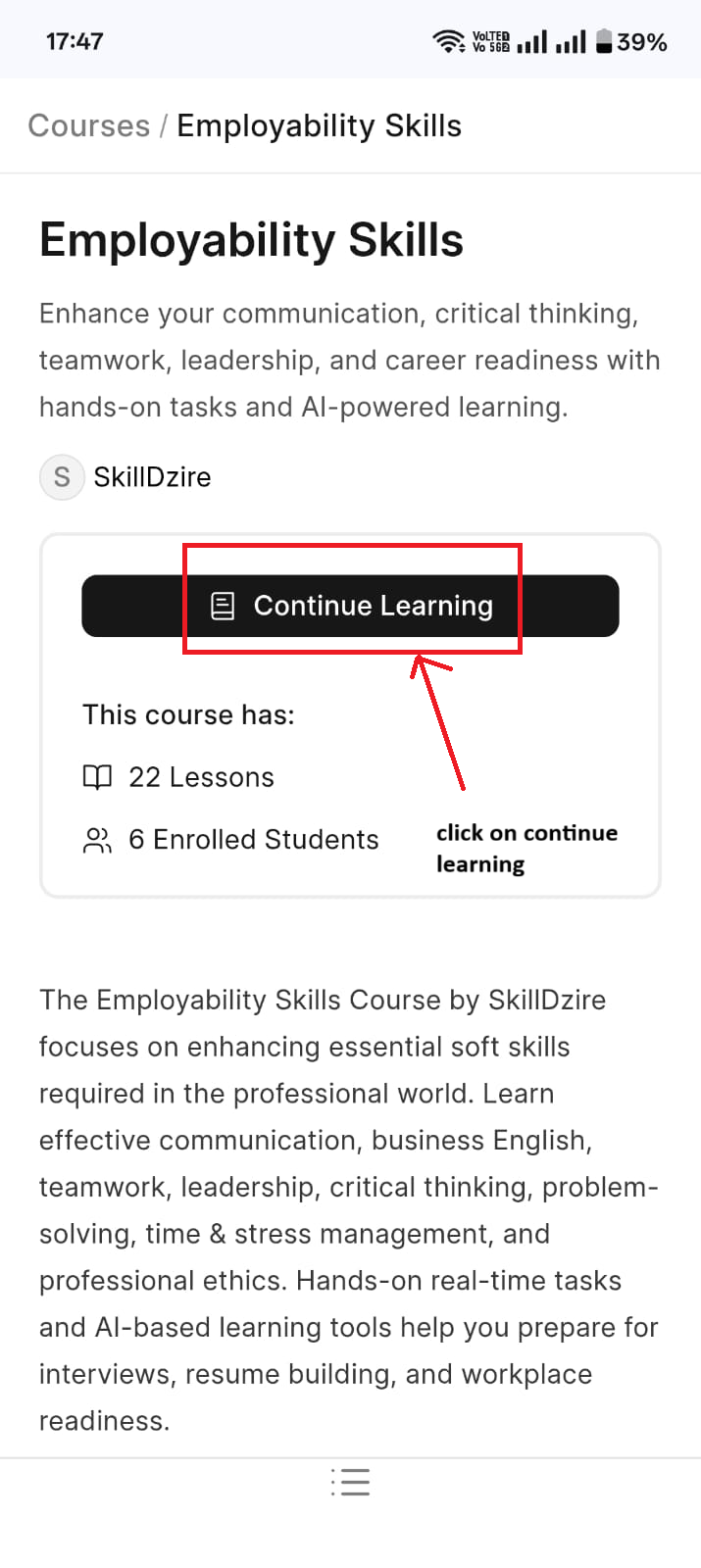
Step 5: Access Course Lessons

Start learning lessons.

Mobile Step 5a Mobile Step 5b

Step 6: Visit Batch for Assessment

Visit your batch.

Mobile Step 6